
Hospital integration guide

Norton Healthcare Norton Healthcare · mychart.nortonhealthcare.org

Your Norton Healthcare medical records

Use Norton MyChart, request a missing document, and check the hospital or practice behind each record before organizing it in KeepMD.

Available to connect Connection status reviewed on

KeepMD is an independent personal health record app. It is not affiliated with, endorsed by, or operated by Norton Healthcare or Epic Systems Corporation. MyChart® is a trademark of Epic Systems Corporation.

Portal Norton MyChart mychart.nortonhealthcare.org
KeepMD connection Norton Healthcare Norton MyChart route; verify the treating Norton hospital or practice
Records 502-629-8766 Health Information Management

Start with the document you need

Norton MyChart shows portions of your chart. Use the patient records route for your own copy, the physician route for an office request, and Health Information Management for help with the authorization. Check the treating Norton location before connecting.

Which Norton Healthcare records can you bring together?

Use these ten categories to check your connected records. What arrives depends on what the hospital has recorded and shares for your account and dates of care.

10 categories to check

10 types

Use this checklist for an Epic connection. Available content depends on your account; listing a category does not confirm that records in it have been imported.

  • Lab results
    Blood work and other laboratory results. Check the collection date, units, and reference range when comparing tests from different visits.
  • Vital signs
    Measurements such as blood pressure, pulse, height, and weight. Look at the visit date so an older measurement is not mistaken for a current one.
  • Medications (prescriptions)
    Prescription records may include current and past orders. A prescription entry does not establish what you take today; discuss discrepancies with your care team.
  • Allergies and intolerances
    Recorded allergies, intolerances, and reactions. An empty list does not confirm that you have no allergies; compare it with information you have given your clinician.
  • Immunizations
    Vaccinations documented in the chart. Doses given at a pharmacy, school, or another health system may need to be obtained from that source.
  • Health conditions and problems
    Diagnoses and entries on the problem list. Some entries describe past care; ask the treating team about an unfamiliar or incorrect entry.
  • Procedures
    Documented procedures and treatment history. For the details of an operation, look for the operative report as well as the procedure entry.
  • Visits and encounters
    Office visits, emergency visits, and hospital stays. Compare the facility and dates with your own appointment or discharge paperwork.
  • Clinical documents and notes
    Released clinical notes, visit summaries, and other documents. Availability can differ by document and date; request a missing note by visit and clinician.
  • Diagnostic reports
    Written findings from imaging or other diagnostic tests. The report explains the findings; the actual scan images may follow a separate download or request process.

Not yet verified

1 type

These may exist in the portal, but KeepMD has not verified their availability through this connection.

  • Categories available in your account
    Norton MyChart coverage depends on the patient, encounter and permissions. Compare each category with the portal; this guide does not certify every category as imported.

Usually a separate request

2 types

Records Norton Healthcare typically releases through its medical-records process, not through the patient-access connection.

  • Images and reports
    The report and the image files are different records. Confirm the imaging location and study date before requesting a copy.
  • Complete chart or certified documents
    Use the formal request route for the correct custodian; a portal view can be partial.

The Norton Healthcare connection in seven steps

Illustrative walkthrough: find Norton Healthcare, confirm the Norton MyChart portal, and review access before sharing information. The screens and counts are examples, not a record of an import from this hospital.

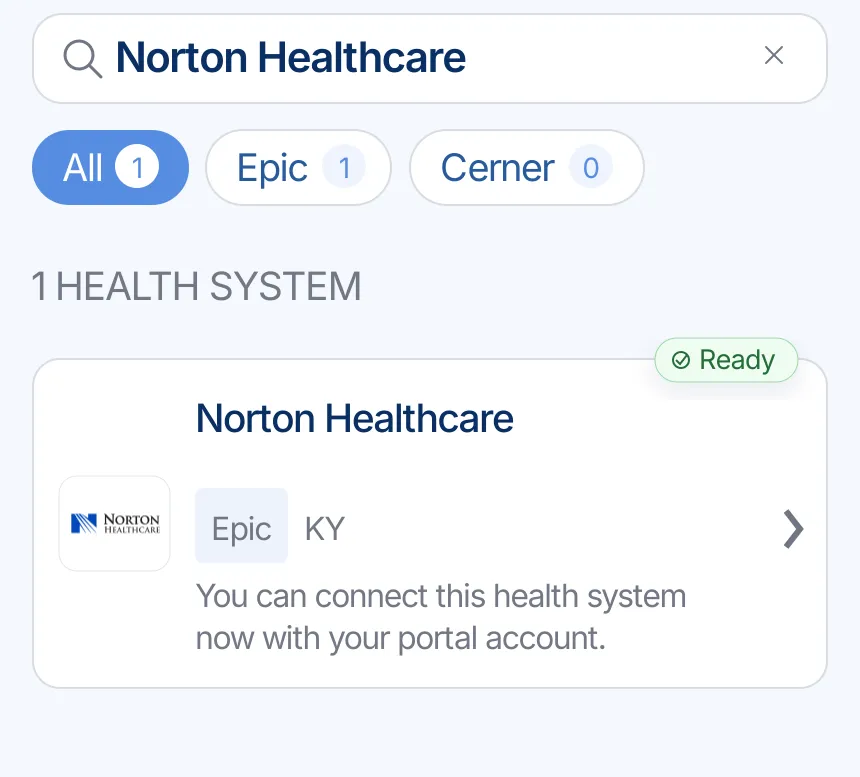
  1. Step 1 of 7

    Find Norton Healthcare

    Search for Norton Healthcare in KeepMD. Confirm the portal is mychart.nortonhealthcare.org and matches the location that treated you.

    Illustrative example: KeepMD search results showing Norton Healthcare ready to connect
    Example of provider search in KeepMD.
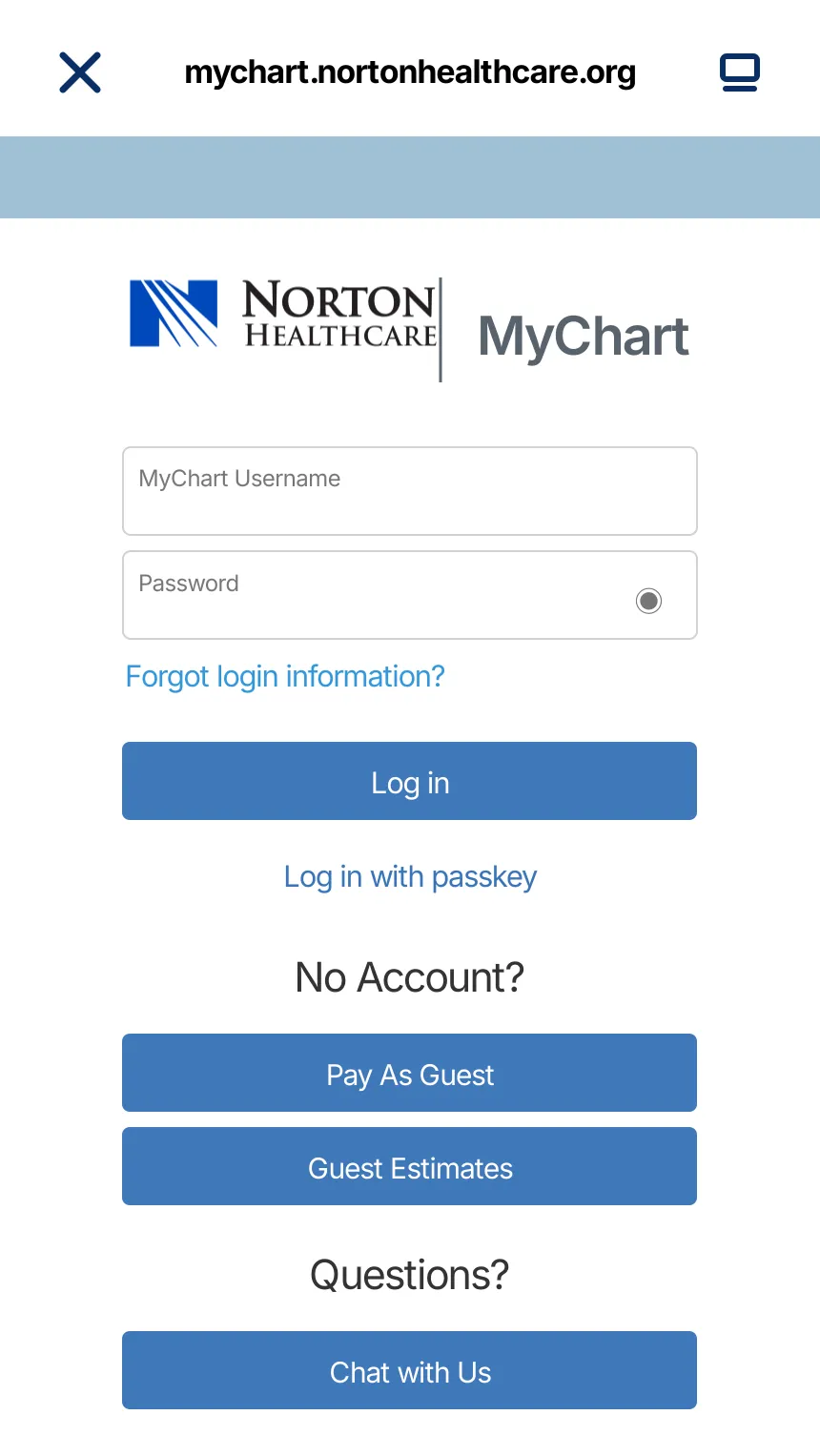
  2. Step 2 of 7

    Continue to Norton MyChart

    KeepMD opens the provider-owned sign-in page. Enter credentials there; KeepMD does not receive or store your password.

    Illustrative example: Norton MyChart sign-in handoff for the Norton Healthcare connection
    Secure handoff to Norton MyChart.
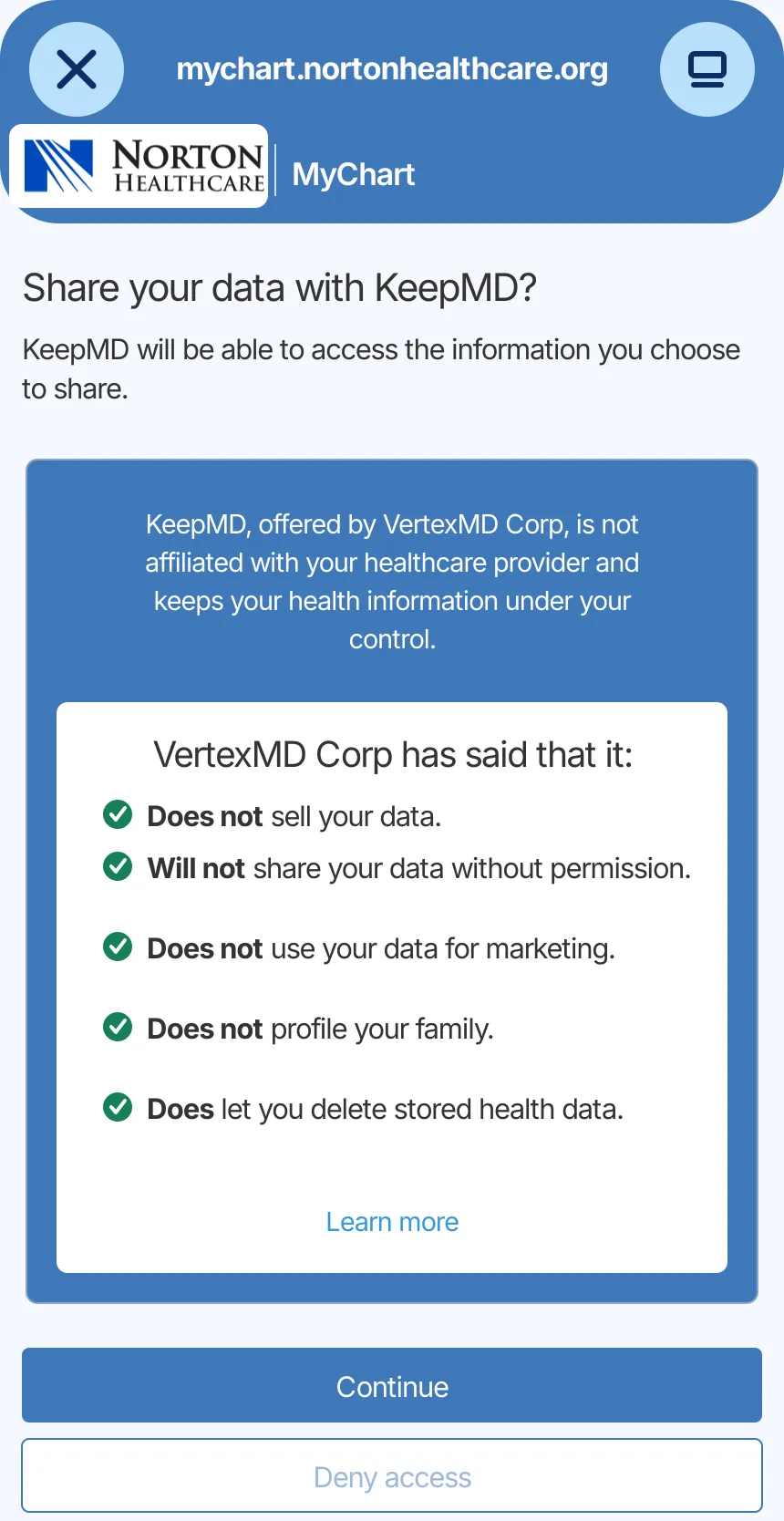
  3. Step 3 of 7

    Review access

    Review the information the portal can share and decide whether to authorize the connection.

    Illustrative example: KeepMD data-sharing consent screen for the Norton Healthcare connection
    Access review for the provider connection.
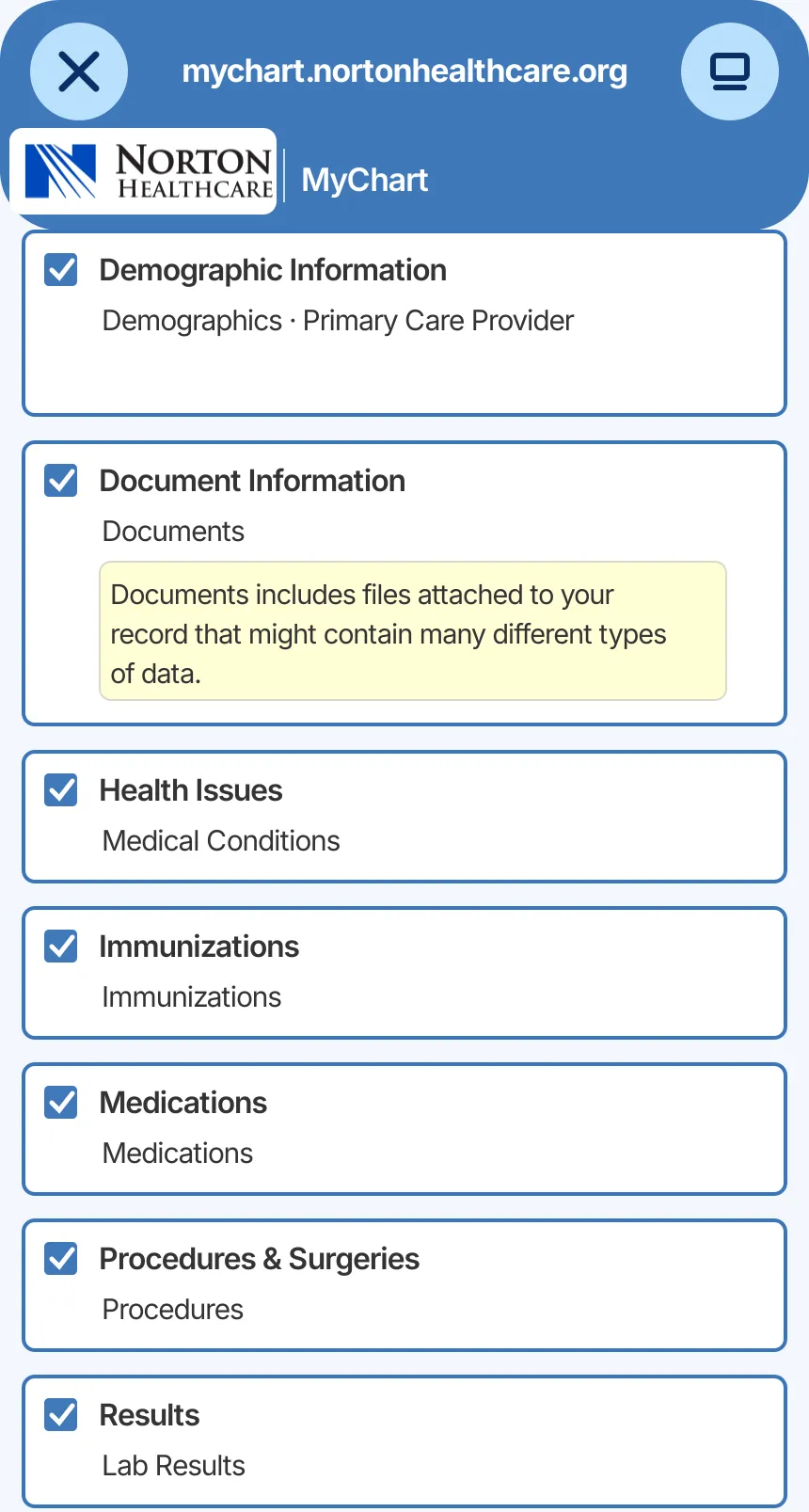
  4. Step 4 of 7

    Choose record categories

    Select the information you want to organize. Actual availability depends on your account.

    Illustrative example: Epic MyChart record categories available to choose for the Norton Healthcare connection
    Health-information categories selected for import.
  5. Step 5 of 7

    Import available records

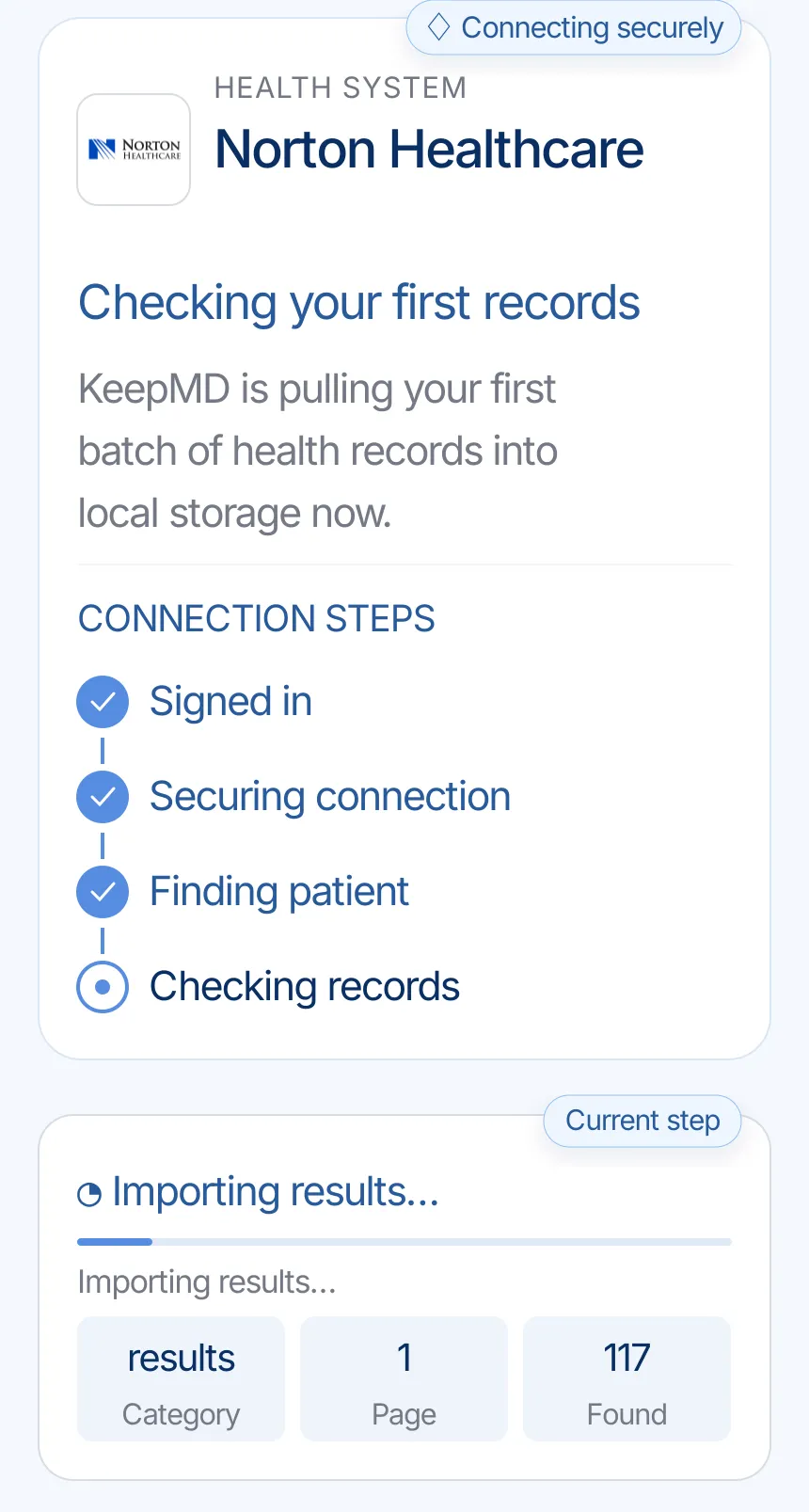
    KeepMD secures the connection and checks the information the provider makes available.

    Illustrative example: KeepMD checking the first records from Norton Healthcare
    KeepMD checking available records.
  6. Step 6 of 7

    Review organized records

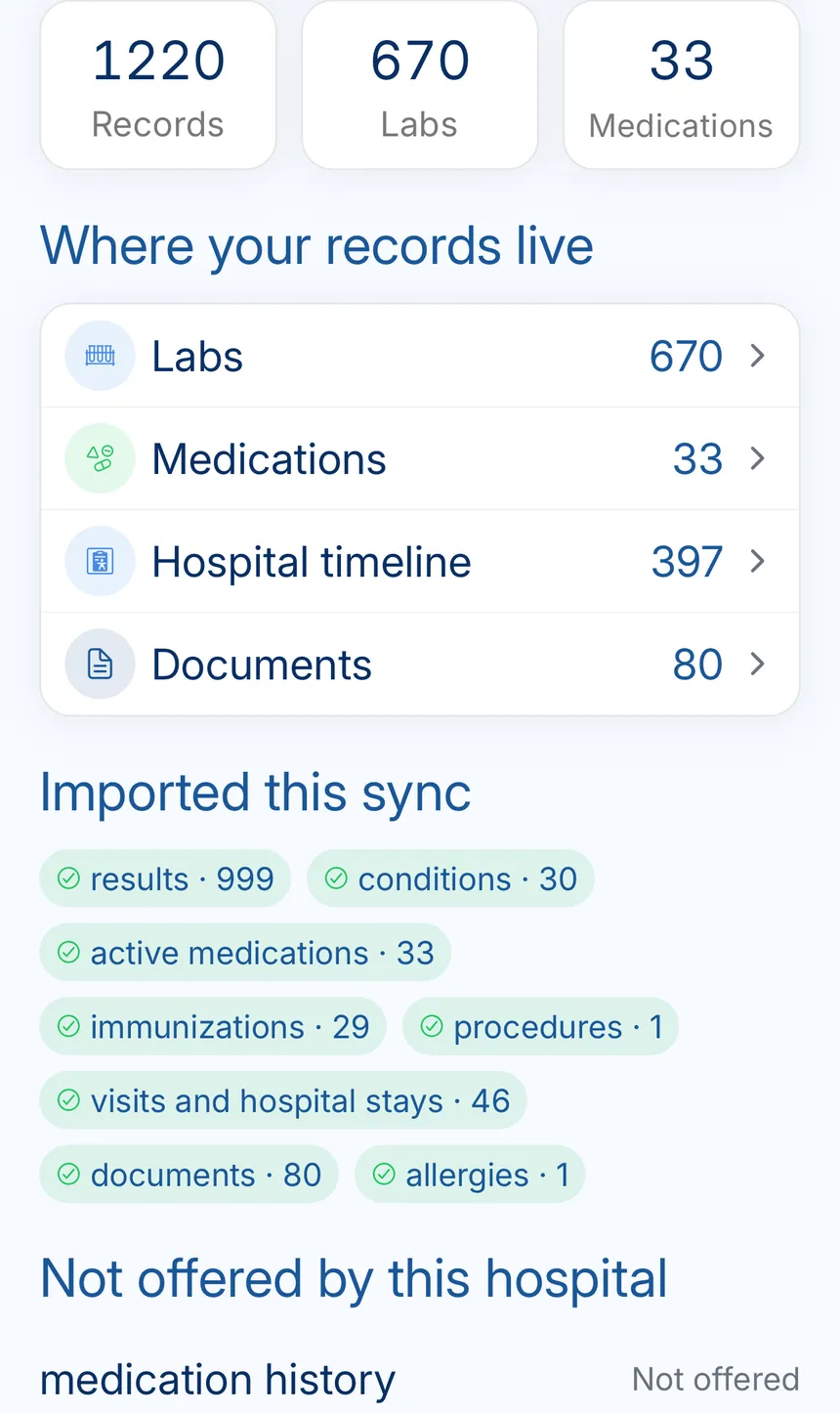
    KeepMD groups what the connection returns. Categories and totals can vary.

    Illustrative example: KeepMD record summary showing organized labs, medications, timeline events, and documents
    Provider records organized in KeepMD.
  7. Step 7 of 7

    See the connection summary

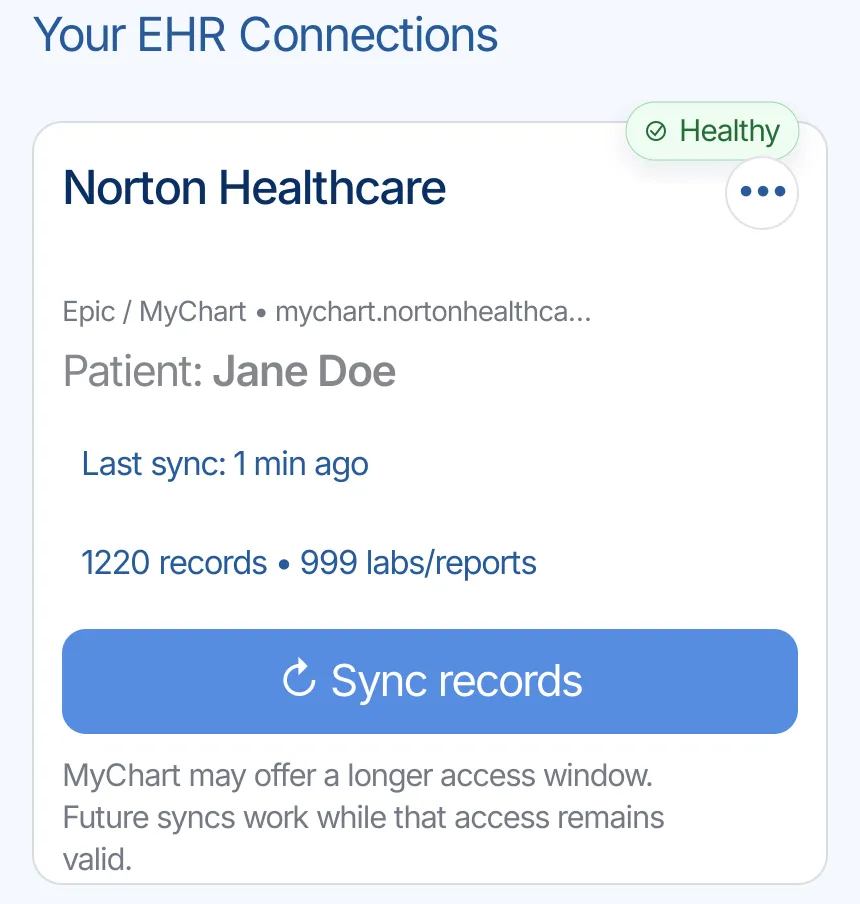
    The summary keeps the provider, last update, and organized categories together.

    Illustrative example: Healthy Norton Healthcare connection in KeepMD with a recent sync and Sync records control
    Norton Healthcare connection summary in KeepMD.

Norton Healthcare: access and requests

Everything the connection does not cover: identifying the right organization, portal downloads, formal requests, privacy, and the post-import check.

Identify your portal and treating location

Health system
Norton Healthcare
Patient portal
Norton Healthcare (mychart.nortonhealthcare.org)
Platform
Epic MyChart
Also appears as
  • Norton Healthcare
  • Norton Healthcare

Norton MyChart is the starting point for records from Norton Healthcare. Check a known appointment before connecting it to KeepMD. The hospital or practice on your paperwork matters, particularly if you have received care elsewhere in Kentucky or Southern Indiana. Search for Norton Healthcare in KeepMD and compare the portal domain with the official Norton site. A similar provider name is not enough to identify the source of your chart.

Review and download your documents

Norton’s records page separates requests by the person or organization asking. Patients, physician offices and other requesters have different online entry points. Use the patient choice for your own chart instead of selecting a professional requester tool. If you prefer paper, the official page provides English and Spanish authorization forms. Norton also lets you supply supporting documents online when they are needed. Keep the confirmation and a short list of the requested visits so you can follow up without starting a duplicate request.

Request the right records

The Norton MyChart help page describes the portal as a view of portions of your record. For information you cannot see, its instructions point to Ask A Question, Customer Service Question and Medical Record Request. Menu labels can change, so consult the current help page if the option looks different. An individual result may be present while an associated note is absent. Name the test date and the specific missing note in the request rather than asking only for results you have already downloaded.

Records 502-629-8766 Health Information Management

Review access before authorizing

Authorize through Norton Healthcare's official portal and confirm the patient. Follow the hospital's proxy permissions when helping a relative.

Keep passwords and sign-in codes private. To stop future app access, check the portal's connected-app controls. Removing permission does not automatically delete files already downloaded or shared. KeepMD is independent of Norton Healthcare and Epic. The screens are examples with synthetic values, not evidence of a hospital-specific import.

Review imported records and permissions

Check the source after your first import. Compare one Norton visit, its date and the record categories with Norton MyChart. If you changed doctors or used another hospital, keep those sources separate in your checklist. A missing document can reflect portal scope, an unfinished request or a different custodian. Describe the gap to the appropriate team without sending your password. Ask the clinician or hospital that created an incorrect entry about its correction process; a second KeepMD sync cannot repair the underlying medical record.

Known Norton Healthcare quirks worth checking

The visit is missing

Norton’s Health Information Management team can help at 502-629-8766. Its records page lists N16 P.O. Box 35070, Louisville, KY 40232-5070 for mailed requests. Check the current form before posting an authorization, including the signature and destination. If another person requests documents for you, use Norton’s representative process and provide the supporting authority the form asks for. KeepMD does not determine whether a family member is permitted to access your Norton chart.


You need original images

Prepare a care packet around the visit you need. A hospital stay may require the discharge summary and relevant reports; a later specialist appointment may need a particular study and its images. Ask the Norton records team which department supplies the actual scan files and what delivery format is available. This guide does not treat a result in MyChart as proof that images arrive in KeepMD. Give the receiving clinician the study date so they can tell you exactly what is useful for their review.

FAQ

Norton Healthcare records questions

Sources