The portal shows a different name
Look for myUCLAhealth and confirm the official domain; a parent-system name may appear.
Hospital integration guide
 UCLA Health UCLA Health · my.uclahealth.org
Find UCLA Health records in myUCLAhealth, connect available data to KeepMD, or request a copy. Check the HIM phone, fax, and separate imaging contact.
KeepMD is an independent personal health record app. It is not affiliated with, endorsed by, or operated by UCLA Health or Epic Systems Corporation. MyChart® is a trademark of Epic Systems Corporation.
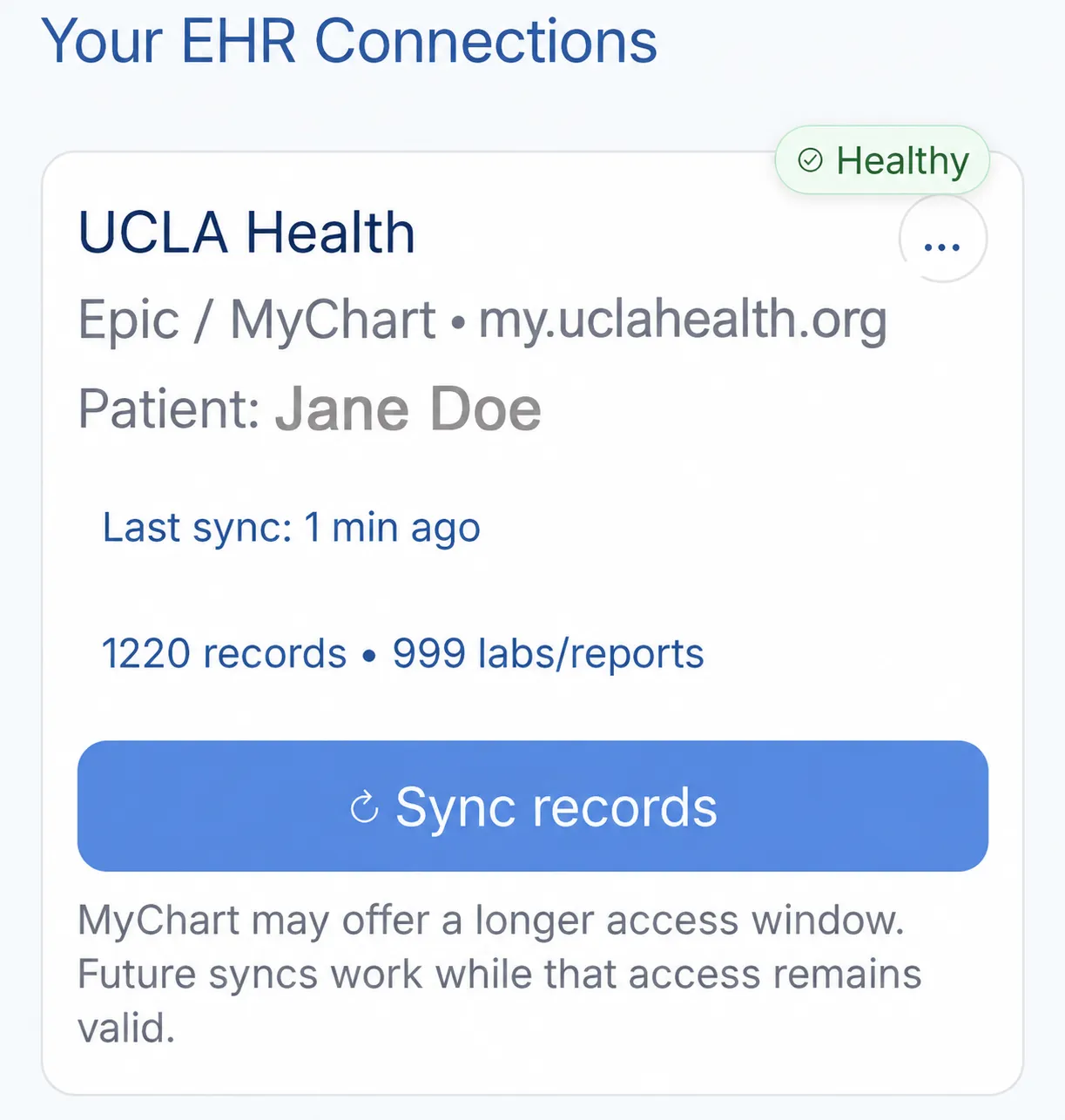
Looking for a test result, preparing for a new appointment, or collecting an older hospital stay? Start with myUCLAhealth, then use UCLA Health’s records service for anything you cannot find. You can also connect available records to KeepMD and review them alongside your other health information.
Use myUCLAhealth for available results and visit information. Have your account ready before starting the KeepMD connection.
Write down the UCLA facility, appointment or admission dates, and the documents you need before contacting records staff.
An imaging report and the scan itself are different items. Ask for both when a specialist needs to review the images.
Have records at another health system? Explore other Epic hospital guides.
Use these ten categories to check your connected records. What arrives depends on what the hospital has recorded and shares for your account and dates of care.
Use this checklist for an Epic connection. Available content depends on your account; listing a category does not confirm that records in it have been imported.
These may exist in the portal, but KeepMD has not verified their availability through this connection.
Records UCLA Health typically releases through its medical-records process, not through the patient-access connection.
Follow an example KeepMD connection from the UCLA Health search result to myUCLAhealth, consent, record selection, and the import summary. Use the screens to recognize each step; the record totals shown are sample data.
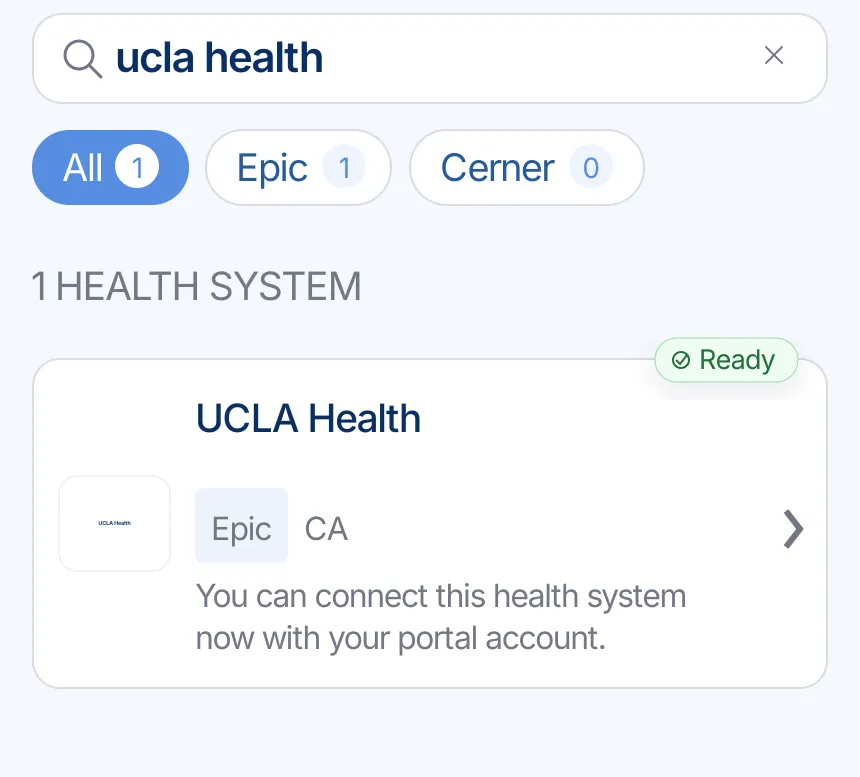
Search for UCLA Health or a familiar system name, then choose the correct provider result.
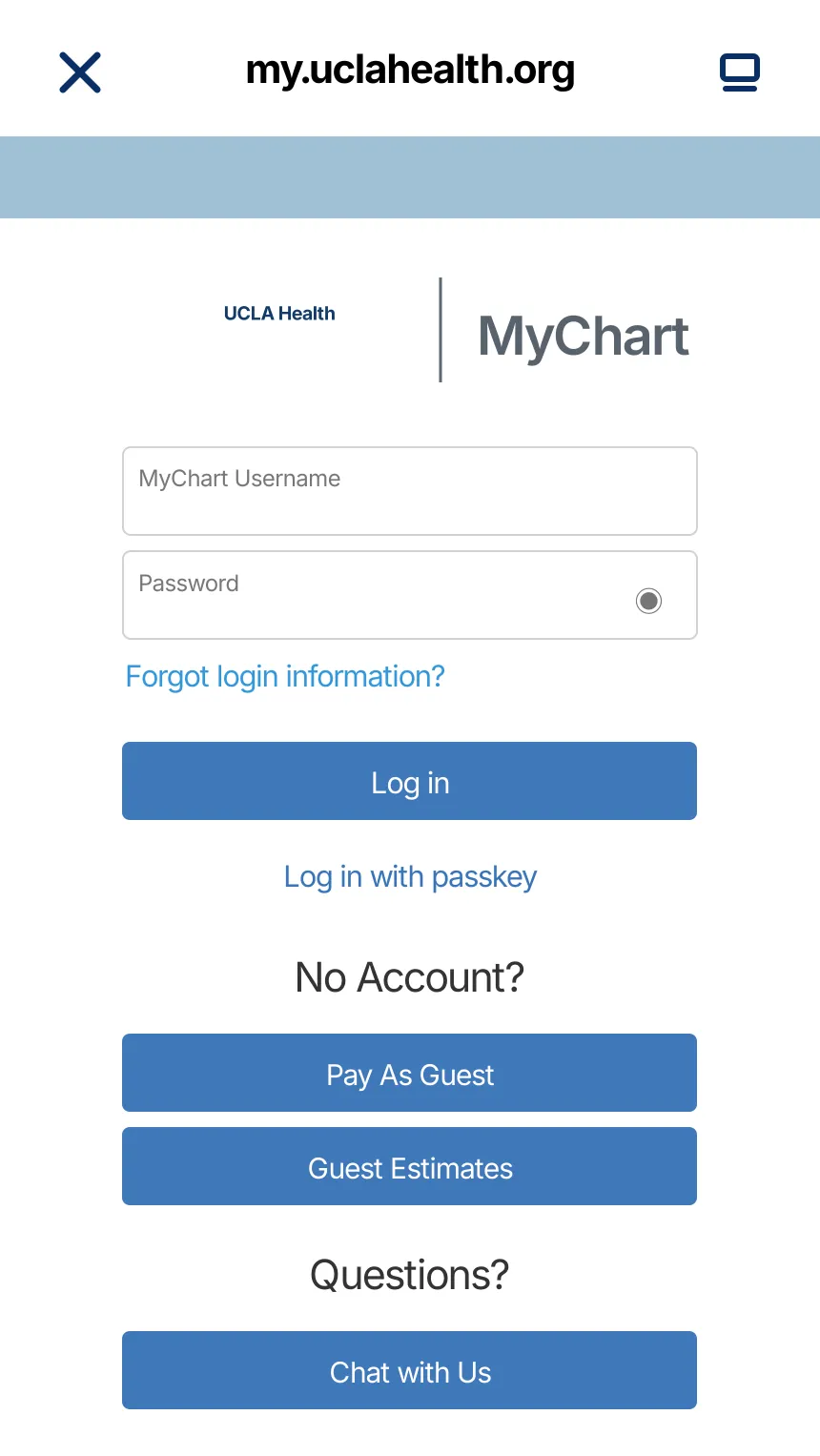
KeepMD opens the provider-owned sign-in page. Enter credentials there; KeepMD does not receive or store your password.
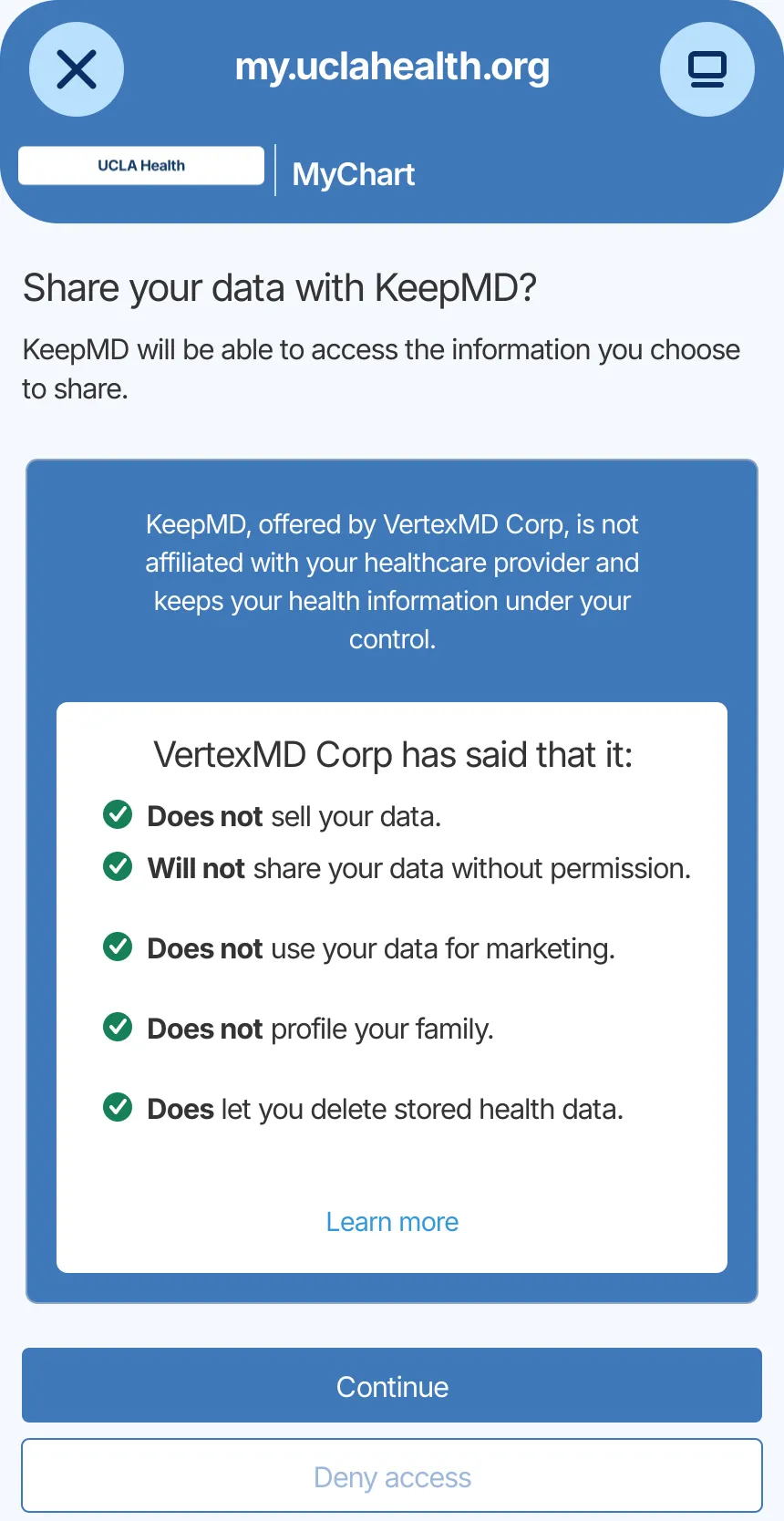
Review the information the portal can share and decide whether to authorize the connection.
Select the information you want to organize. Actual availability depends on your account.
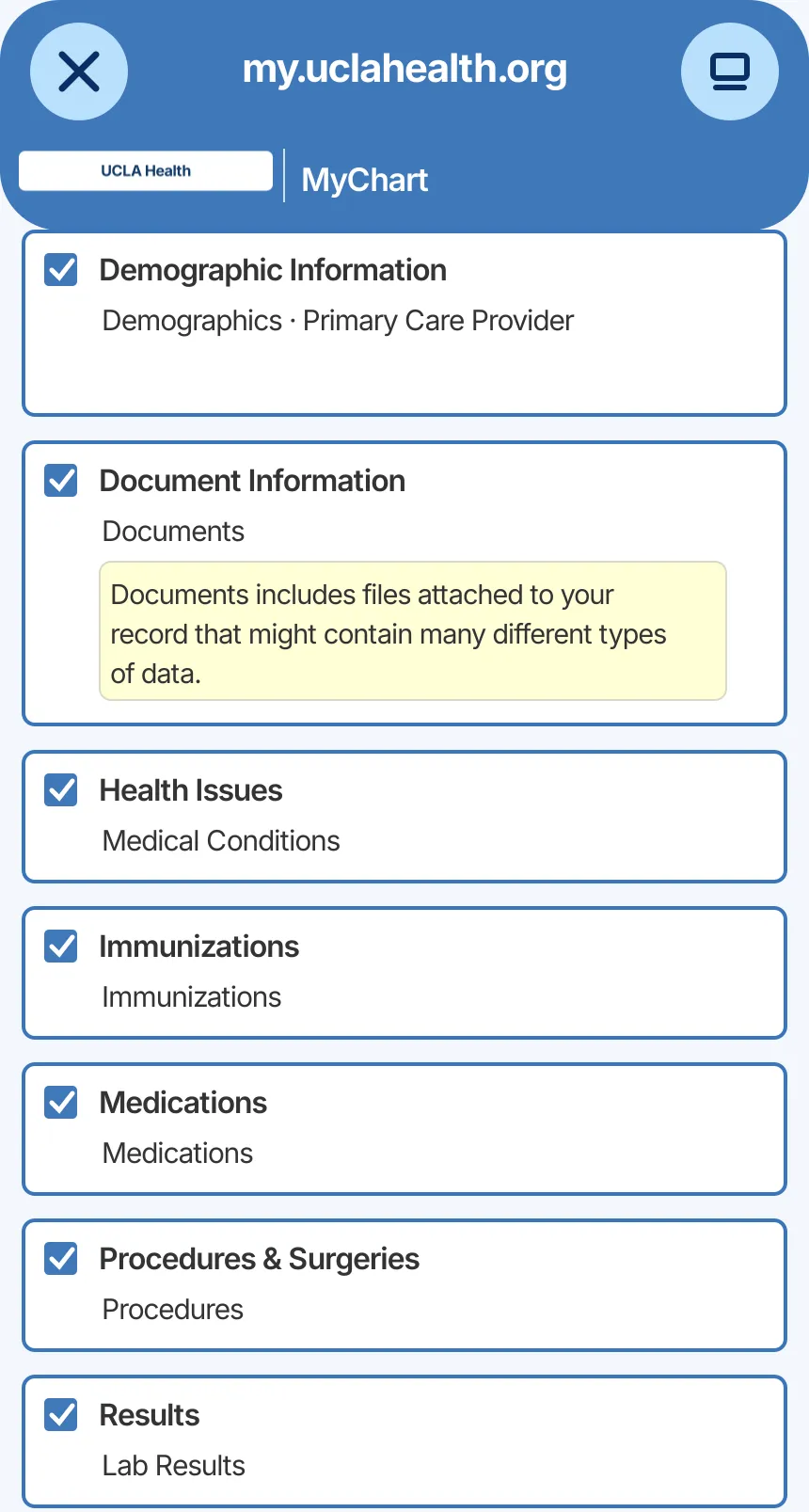
KeepMD secures the connection and checks the information the provider makes available.
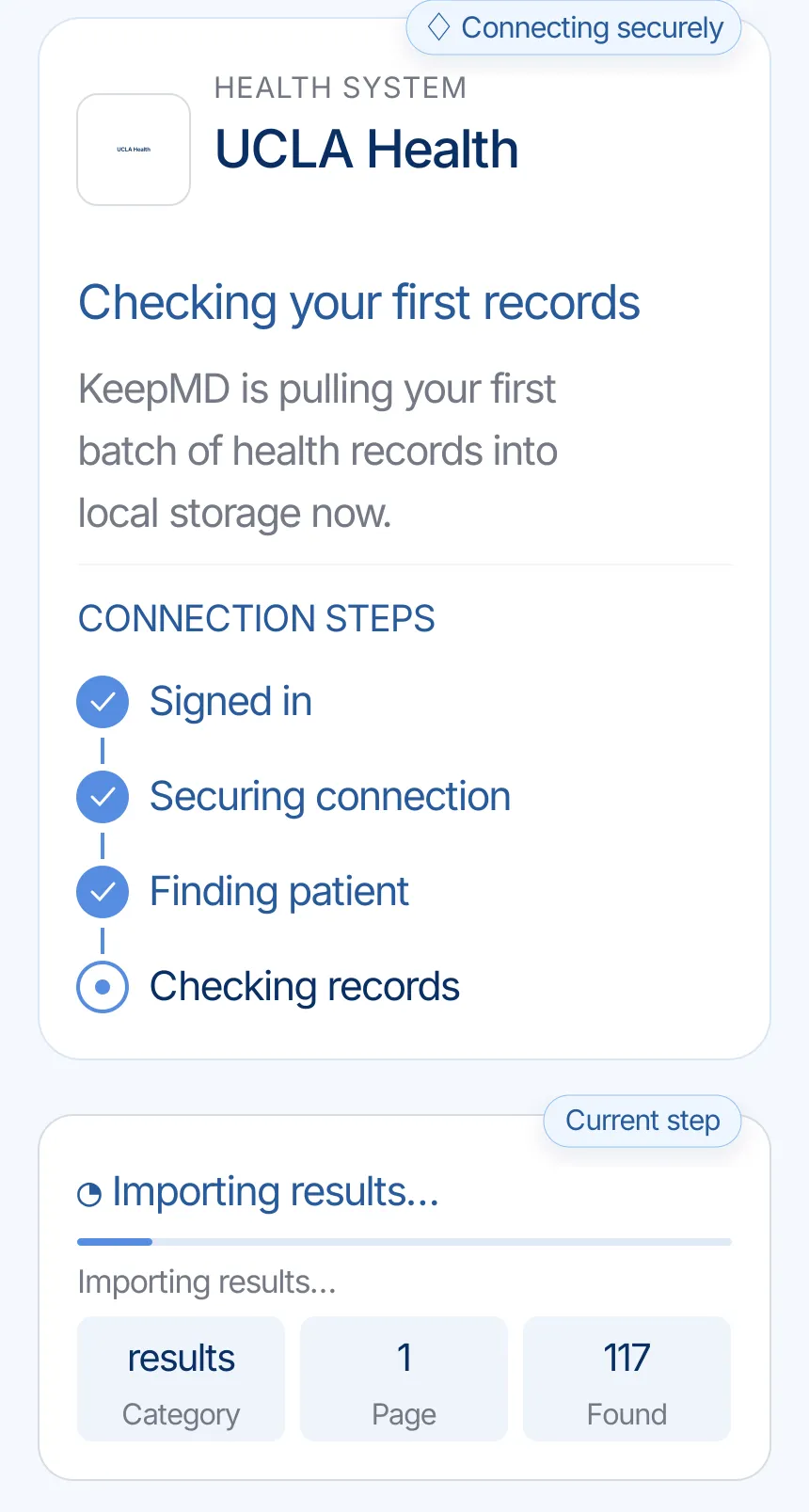
KeepMD groups what the connection returns. Categories and totals can vary.
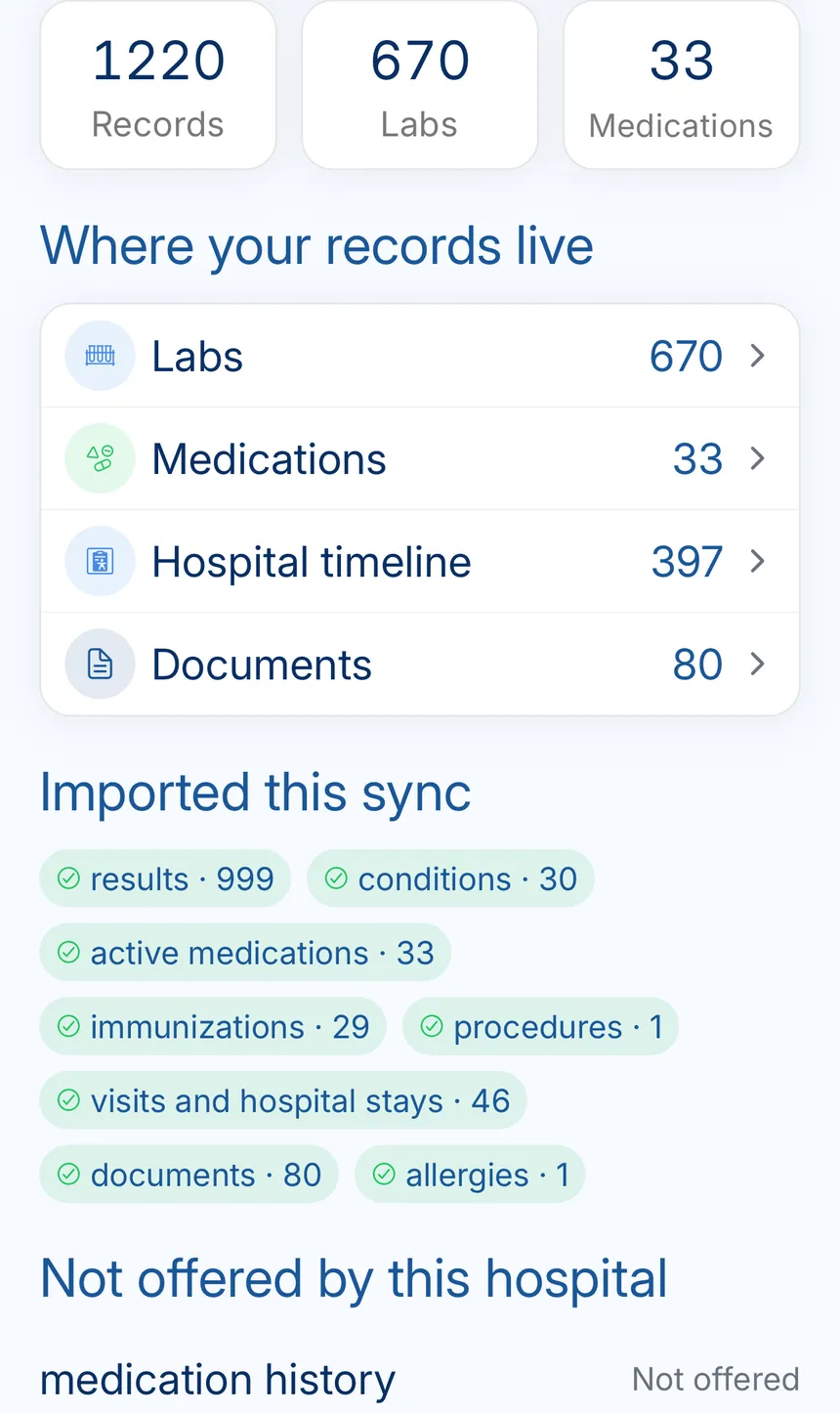
The summary keeps the provider, last update, and organized categories together.
UCLA Health's main location and current official records channels.
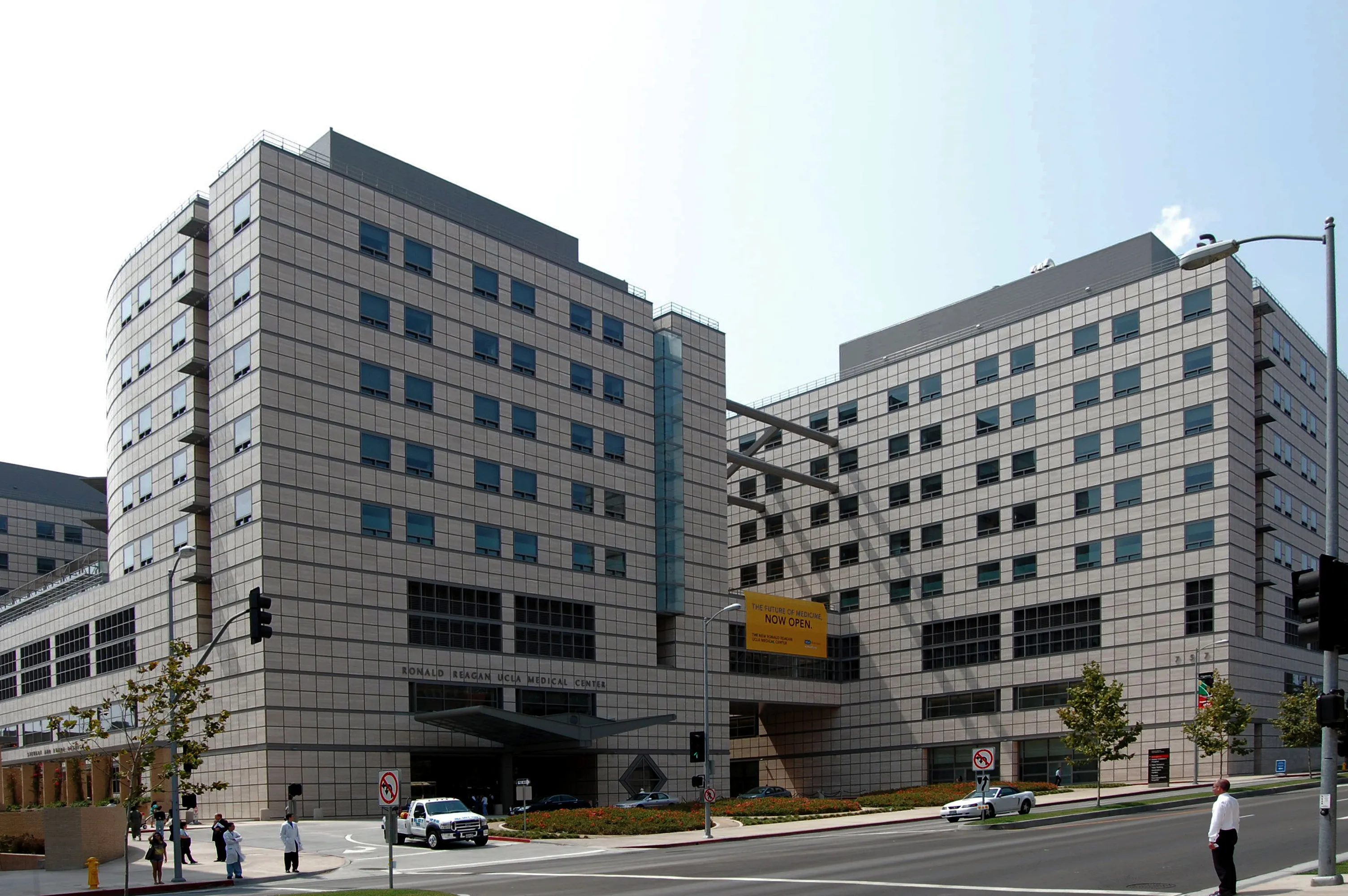
Ronald Reagan UCLA Medical Center campus (2008 photo)
UCLA Health — official location 2026-09-24
Everything the connection does not cover: identifying the right organization, portal downloads, formal requests, privacy, and the post-import check.
UCLA Health uses myUCLAhealth for patient access. A hospital name on your paperwork, such as Ronald Reagan UCLA Medical Center or UCLA Santa Monica Medical Center, helps you identify where the care took place. Keep that name with your request.
If you received care at a student health service, check its own records instructions; UCLA lists a separate MyStudentChart route.
You can review available results and visit information in myUCLAhealth. For a requested records package, UCLA currently directs patients to use a desktop browser; its formal portal request tool does not support mobile devices.
If you only have a written imaging report, decide whether you also need the actual images. Keep a note of the exam date so the imaging department can locate the right study.
For a formal copy, use UCLA’s online authorization option or its signed paper form. The records office can help with request questions at 310-825-6021. Radiology images have a separate contact: 310-825-6425.
Authorization takes place through UCLA Health’s portal. Read the permissions screen and confirm the patient before continuing.
If you want to stop sharing with an app, check the portal’s connected-app controls. Stopping future access is separate from deleting copies you have already downloaded or sent. KeepMD is independent of UCLA Health and Epic.
Start with a recent UCLA visit you recognize. Compare its date and facility with myUCLAhealth, then look for the associated results and notes. If the report is present but the scan is missing, follow the radiology route rather than repeatedly reconnecting.
Ask the team that created the record about an incorrect diagnosis or detail; importing it again does not correct the source.
Look for myUCLAhealth and confirm the official domain; a parent-system name may appear.
Refresh the connection, compare it with the portal, and formally request anything still absent.
Radiology images: 310-825-6425
FAQ
Start with myUCLAhealth to review information available from UCLA Health. Open it through the official website and check the patient profile. Use the request route in this guide when a document is missing.
The listed contact is 310-825-6021. Check the facility before calling and have the dates of care ready. Portal-login support is listed separately.
The listed fax route is: 310-983-1468. Confirm the destination in the official guide before sending a signed form.
Identify the facility, dates, and documents you need. Check the portal first, then follow the official request process for missing material. Keep the confirmation so you can follow up with the same office.
Yes. Search for the system in KeepMD, continue to the portal, and review access before authorizing.
No. KeepMD is independent and is not affiliated with, endorsed by, or operated by the health system or Epic.
Check the patient profile, facility, and date range. Compare with the portal: a completed connection does not establish that every document is included. For older notes, images, or a complete chart, use the hospital’s records-request guidance.
For UCLA radiology images, call 310-825-6425. Give the exam date and ask how to obtain or send the study. A written report alone may not meet the receiving specialist’s needs.